
|
UPDATE 20 NOV: 1. Put on Standby and check after 2-4 hours whether updated to new version already2. Else, if still has looping issue, perform the troubleshoot steps listed below and then re-try again. Please ensure version - 25.11.12 is updated on the TV Stick. |
| We sincerely apologize for the inconvenience caused by this issue. Our team is actively working on a permanent software fix that will be rolled out soon via an update. Thank you for your patience. |
Use this guided recovery to resolve the startup loop where the device shows the SOOKA logo repeatedly and never reaches the Home screen.
What’s happening?
1) My SOOKA TV Stick shows the SOOKA logo in a loop and never starts. What should I do?
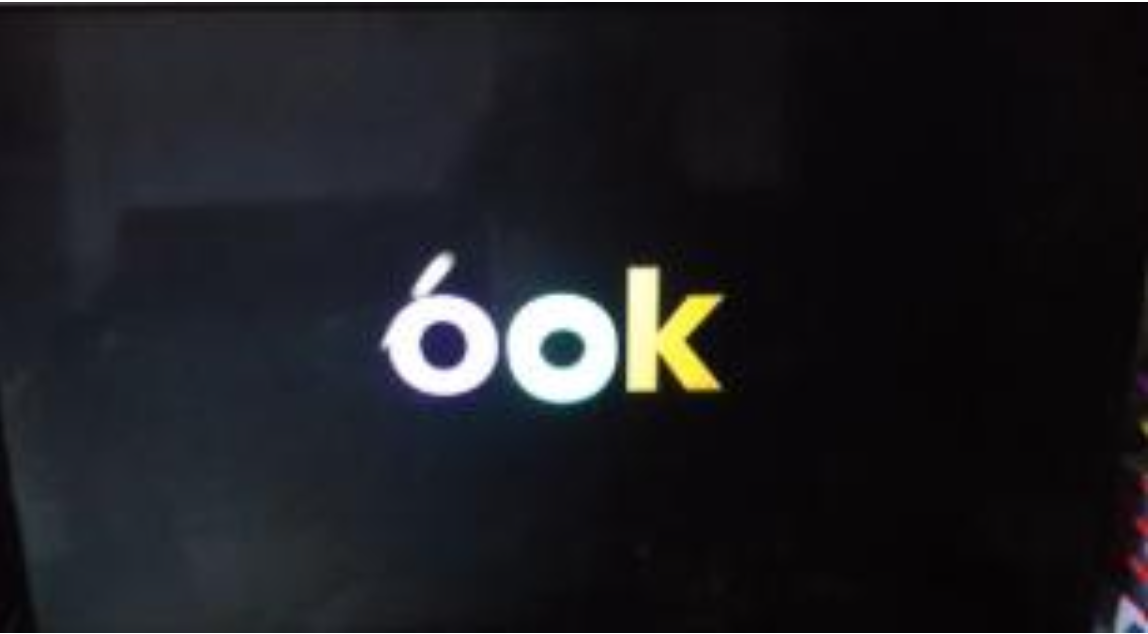
This is a known intermittent software issue. Please follow these steps to recover your device:
A. Re-pair the remote via Bluetooth
Switch off the SOOKA TV Stick (unplug the power).
- Press and hold the Bluetooth button on the TV Stick device.
- While still holding the Bluetooth button, plug in the power to turn the device on. Keep holding the button.
- Release only after you see a blue screen that says “Bluetooth Pairing on Remote Control.”
- Follow the on‑screen instructions to pair the remote (press and hold the prompted buttons together).
B. Reset the device to factory state
- After pairing, you’ll see Startup Options. Choose Reset Options → Reset device to factory state → Proceed with reset.
- Wait until the reset completes. Do not turn off the device during the process.
C. Update SOOKA App and adjust settings
- Once reset finishes and the device restarts, open Google Play Store and update the SOOKA app to the latest version.
- Go to Settings → Apps and DISABLE “YouTube Music.” Then restart the TV Stick. (This helps prevent UI conflicts.)
Tip: Most users recover fully after the reset + app update + disabling YouTube Music. If the loop persists, please see Section 5 (Escalation).
2) The Home screen keeps blinking/flickering. How can I fix it?
Follow these steps to stabilize the Home screen:
- Launch the YouTube app using your remote.
- Press and hold the microphone button on the remote and say: “Open Settings.” This opens TV Stick settings.
- Navigate to Settings → Apps → SOOKA, then Clear Data and Force Stop.
- In Settings → Apps, DISABLE “YouTube Music.” Restart the TV Stick. Ver 3 | PDF]
3) Why do I need to disable “YouTube Music”?
In some configurations, YouTube Music can interfere with the SOOKA launcher UI, causing startup loops or Home blinking. Disabling it has been shown to prevent these symptoms on affected devices.
4) After reset, which updates are required?
- Open Google Play Store and ensure the SOOKA app is on the latest version before regular use. This delivers recent fixes that address the loop/blink behavior.
5) The issue persists after I followed all steps. What next?
If the SOOKA logo still loops or the Home screen blinks after completing Sections 1–4:
- Power cycle the TV Stick once more (unplug power for 30 seconds, then plug back in).
- Re-check: SOOKA updated? YouTube Music disabled?
- If still unresolved, contact support and provide:
- Device model and serial (found in Settings → Device Diagnostics)
- Current software/app versions (SOOKA app version in Play Store)
- Steps already attempted (re-pair, factory reset, disable YouTube Music)
- A short video of the loop/blink behavior (if possible)
Our support team will guide you through additional diagnostics or provide a replacement path if needed.
6) Will I lose my data when I reset to factory state?
Yes. A factory reset removes app data and settings. After reset, you’ll need to sign in again and reconfigure apps. (Make sure you know your login details before resetting.)
7) How long does the reset take?
The factory reset typically completes within a few minutes. Please do not power off the device during the countdown and reset process.
8) Quick Checklist (before contacting support)
- ✅ Remote paired successfully on the Bluetooth pairing screen
- ✅ Performed Factory Reset via Startup Options → Reset Options → Reset device to factory state
- ✅ Updated SOOKA app to the latest version from Play Store
- ✅ Disabled “YouTube Music” in Settings → Apps, then restarted the device
- ✅ Confirmed Home screen is stable and device reaches normal startup without looping [SOOKA TV